Run a CASL assessment
Answer questions about your marketing email and get a score and an action plan under CASL, Canada's anti-spam law.
Read the video as text
The CASL assessment, in Valdra.
The clinic in this video is made up, and so is every detail.
CASL is Canada’s anti spam law. It covers newsletters, promotions and text messages.
The assessment checks your consent, your sender details and your unsubscribe process.
Start it from New assessment, then close the gaps from your consent centre.
There you keep proof of each consent and handle unsubscribes within ten business days.
Export your consent records as a CSV file, ready if the CRTC asks for proof of consent.
What this is for
You send marketing email, newsletters or texts and want to know where you stand under CASL. You answer plain questions. Valdra gives you a score out of 100 and a list of what to fix first.
CASL is Canada's anti-spam law. It covers commercial electronic messages. It asks for express or implied consent and a clear unsubscribe, and you must be able to prove consent.
This is general guidance, not legal advice.
Before you start
- Plan: Starter and up. On the Free plan the card shows Upgrade to unlock.
- Role: Admin or Member. An Auditor can read the results but cannot start an assessment.
- Have ready: about 13 minutes, and someone who knows how your team sends marketing messages and collects consent. You can stop and come back later.
Steps
Open CASL assessment
In the menu, open Assess, then click CASL assessment under Federal and provincial.
You will see New assessment: CASL. The card says Commercial electronic messages and About 13 min.
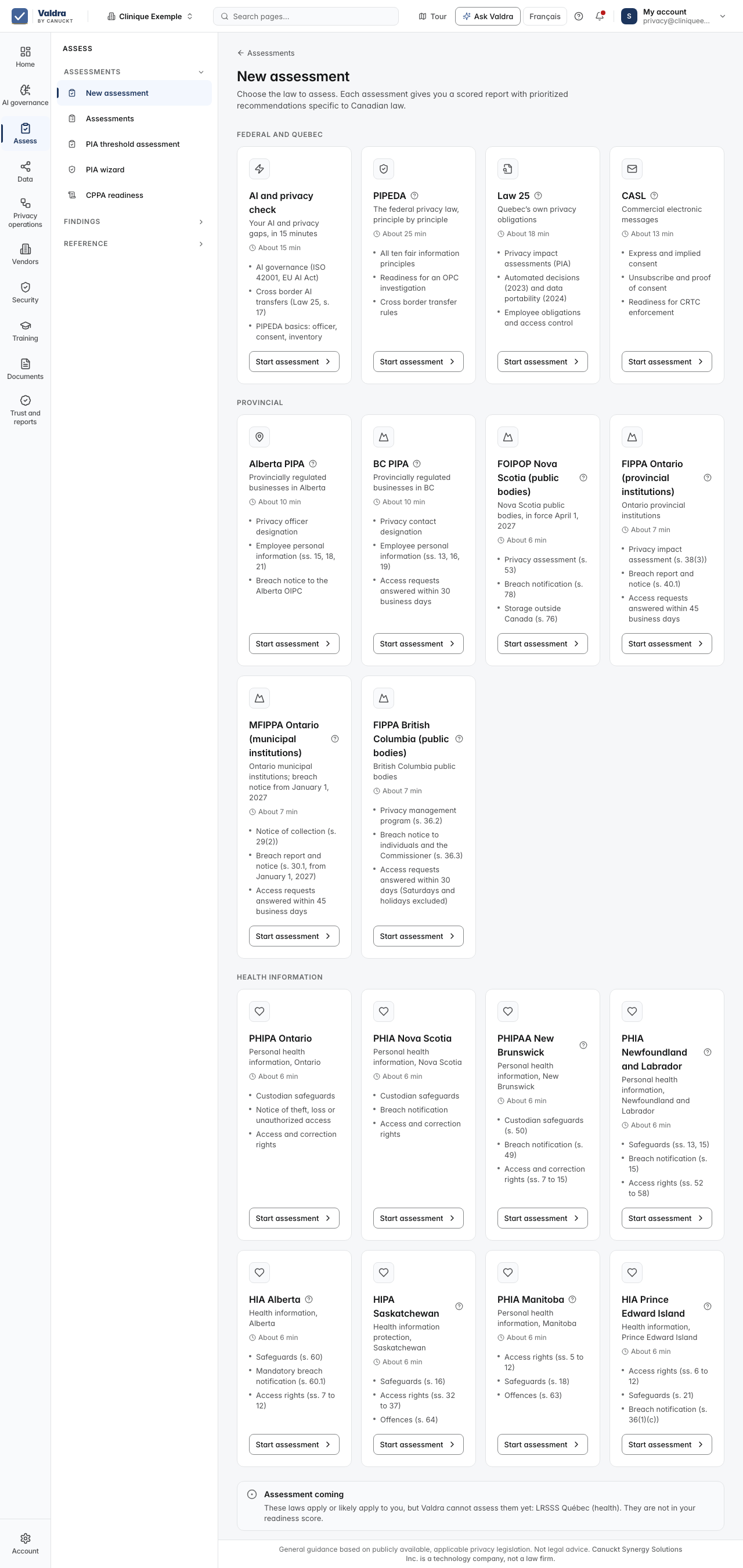
You can also open Assess, New assessment to see every law, then find the CASL card.
Click Start assessment
You will see Setting up your assessment, then the first question.
Answer each question
Pick the answer that fits best: Yes, fully, Yes, partially, Planning or No. Then click Continue.
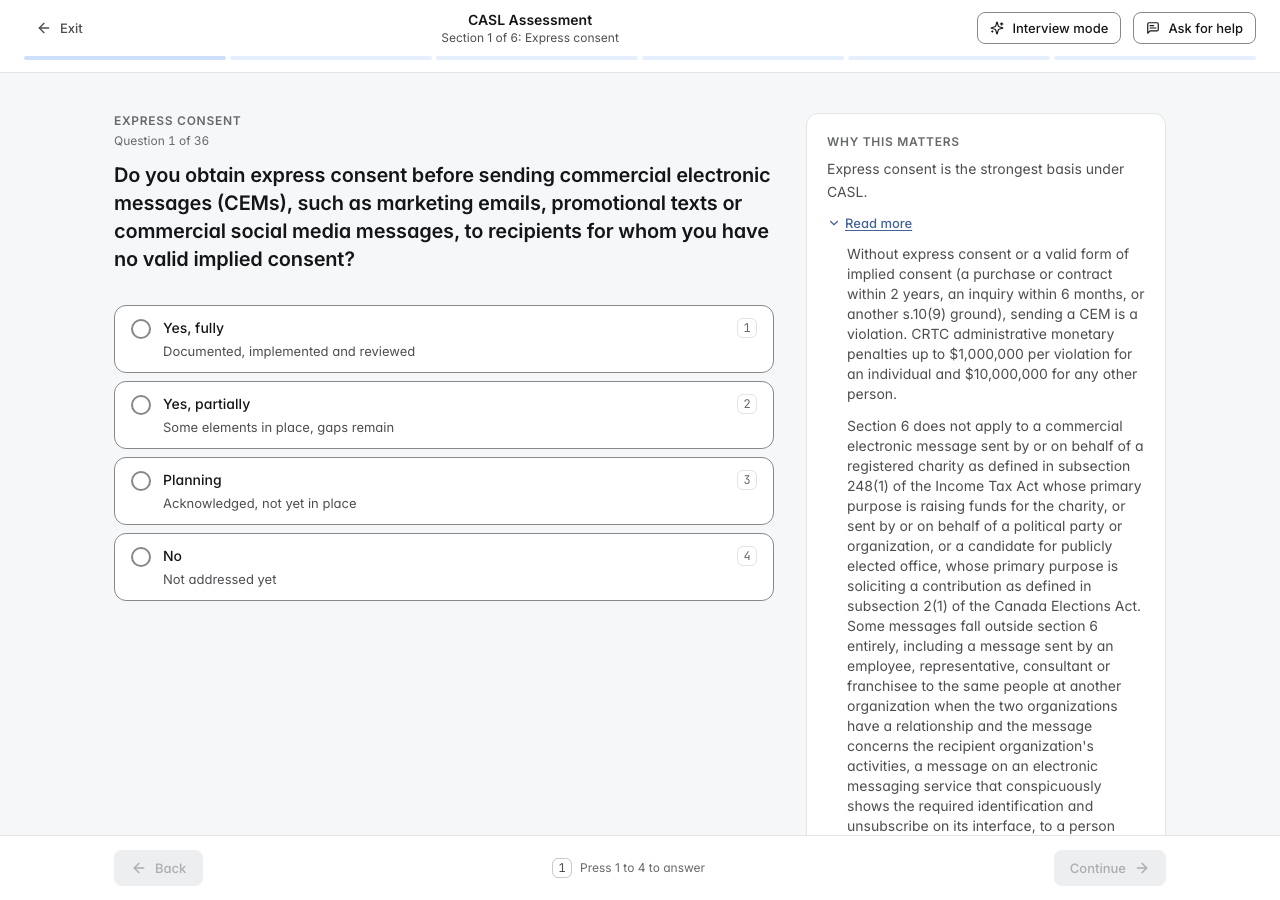
Your answers save as you go. At the top you will see the section you are in and how many questions you have answered.
Not sure what a question means? Open Why this matters under the question.
Click Review answers at the end
You will see Review your answers, with each section and how many questions are answered. Click Edit section to change an answer.
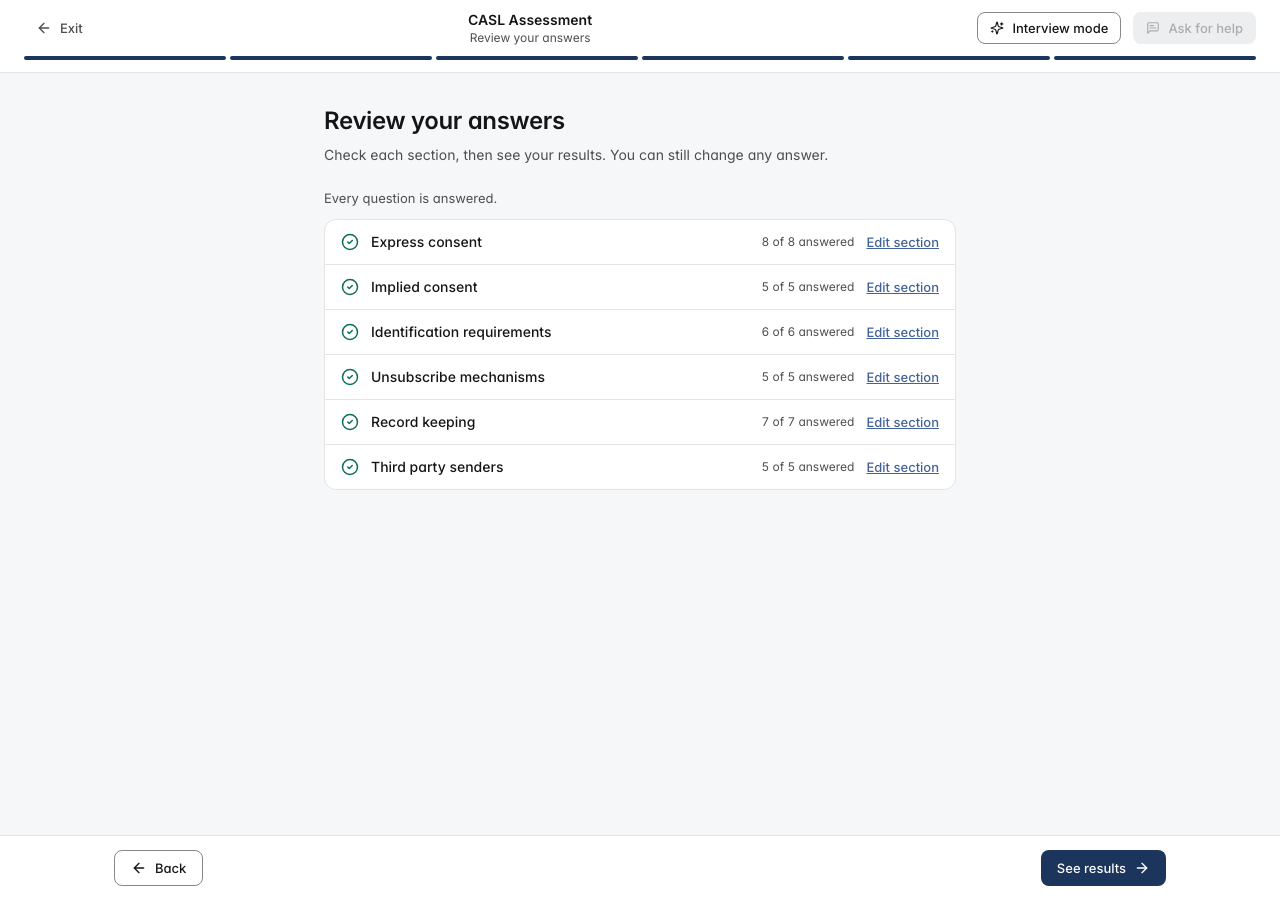
Click See results
You will see Calculating your results, then your report.
What you will see
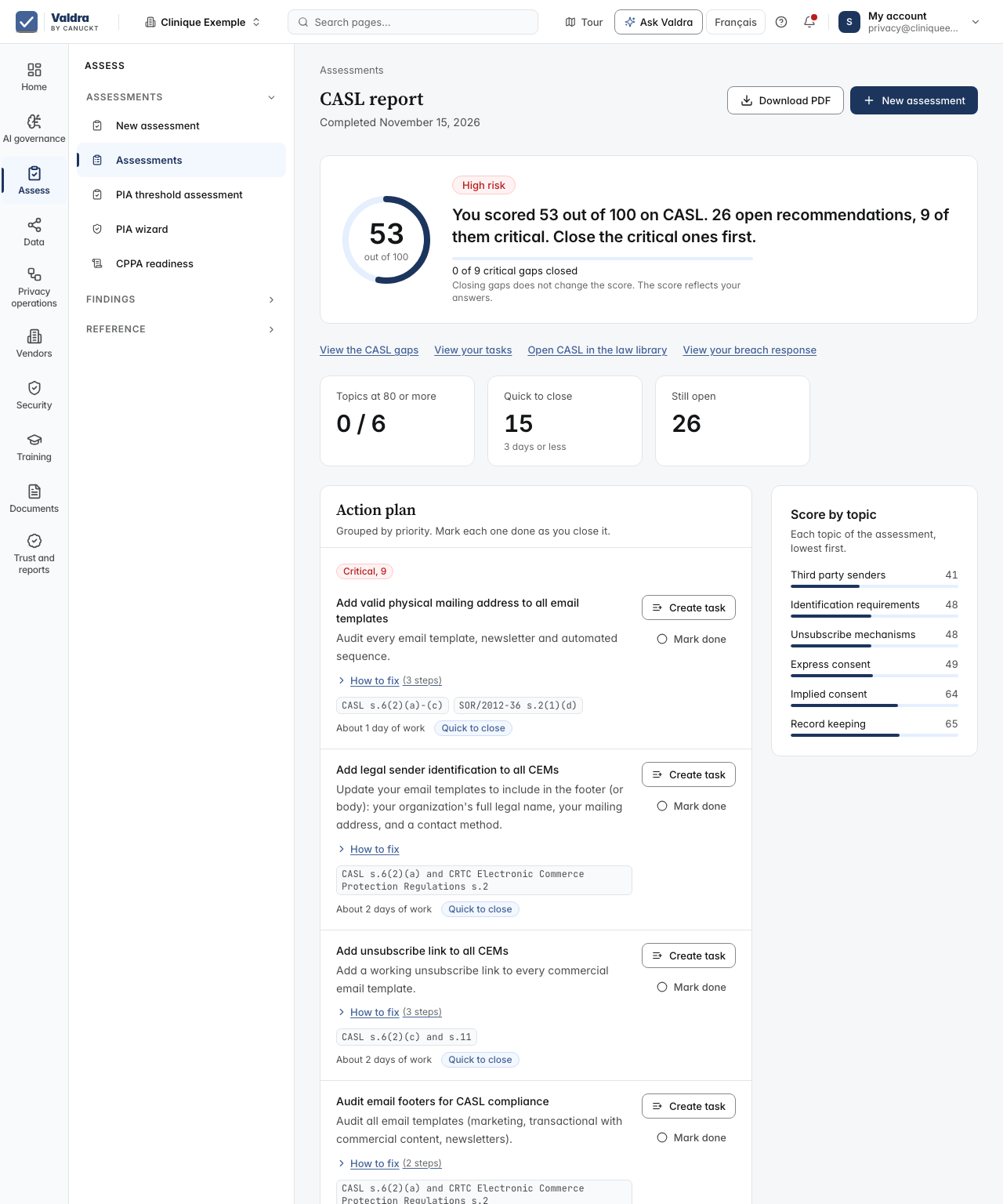
The CASL report opens. It shows:
- your score out of 100 and a risk level, from Low risk to Critical risk;
- Results at a glance: topics at 80 or more, items Quick to close (3 days or less) and items Still open;
- Score by topic, lowest first;
- Action plan, grouped by priority. Click Mark done as you close each item.
Click Download PDF to keep a copy. Click View your tasks to work through the fixes. The report stays under Assessments.
Common mistakes and fixes
The CASL card says Upgrade to unlock. Your workspace is on Free. Click it to see the plans.
You want to collect consent, not just check it. The assessment tells you where you stand. To collect and prove consent, open Consent centre in the menu.
You left after two answers and your draft is gone. A draft with fewer than three answers is removed when you leave. Start again and answer at least three questions before you click Exit.
You want to stop for now. Click Exit, then Leave. Your answers are saved. Finish later from Assessments.
If it did not work
We could not create the assessment. Please try again. The assessment did not start. Wait a moment and click Start assessment again.
Your last answer was not saved. We will retry automatically. The connection dropped. Click Retry now, or wait. Do not close the page until you see Saved.
You are offline. Answers will save when you reconnect. Your internet connection is down. Your answers save once you are back online.
We couldn't save and score your assessment. Your answers are saved. Please try again. Click Retry. Your answers are kept.
This assessment could not be loaded. Click Back to assessments and open it again.
Failed to generate PDF. Please try again. Click Download PDF again after a moment.
Next step
Work through your gaps and tasks to close the items in your action plan.