Install the extension and connect your key
Install the Shielk extension for Chrome and connect it to your Shielk account with your extension key.
Read the video as text
Install the Shielk extension, in Shielk.
The clinic in this video is made up, and so is every detail.
The Shielk extension protects what you type into AI chat tools in Chrome.
Open the extension page and click Install for Chrome.
Then make a key for it on your Account page, under Browser extension key.
Copy the key. It is separate from your API key.
Paste the key in the extension popup and click Save and Test Connection.
What this is for
The Shielk extension hides people's details in your message before it reaches an AI chat site. To work, it needs a key from your Shielk account. This page shows how to install it and connect it.
The extension in the Chrome Web Store today is version 1.5.0. The store still lists it under its earlier name, Canuckt Shield. Its popup is in English only.
Before you start
- Plan: every plan, Free included. On Free, each message the extension protects counts as one of your 30 free jobs a month. Pro, Agency and Enterprise have no monthly job limit.
- Role: any signed in Shielk account can make one extension key.
- Have ready: the Chrome browser on your computer, and the email you use for Shielk.
Steps
Install the extension
Sign in to Shielk. Open the Chrome Extension page and click Install for Chrome. The Chrome Web Store opens. Add the extension to Chrome.
Not signed in? The button reads Sign in to download.

Click Create extension key
Open your Account page. Find the card Browser extension key. Click Create extension key.
You will see the full key once, with Paste this key into the Shielk extension. Click Copy.

Paste the key in the popup
Click the Shielk icon in the Chrome toolbar. Paste the key in API Key.
Click Save & Test Connection
The popup sends a short test text to Shielk. You will see Connected! and your tier, for example free.
On Free, this test counts as one of your 30 jobs.
What you will see
The popup shows Auto-protecting every send. Shield Protection and Auto-Protect on Send are on. See Use Shielk on AI chat sites.
Your extension key is separate from your API key. Apps that use your API key keep working. The extension key works only with the extension.
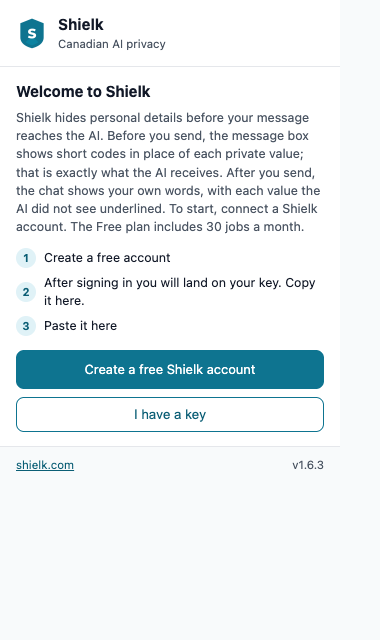
Coming soon. A new version of the extension, named Shielk, is not in the store yet. Its popup is in English and French, opens with Welcome to Shielk, and checks your key without spending a job.
Common mistakes and fixes
You pasted the API key. Use the card Browser extension key on the Account page, not the API key.
You lost your key. On the Account page, click Revoke and create a new key. You will see Your current extension key stops working at once. The extension needs the new key. Confirm, then paste the new key in API Key and click Save & Test Connection again.
You copied a short preview of the key. The full key shows only once, when you make it. Revoke the key and make a new one.
If it did not work
Please enter an API key. The key box is empty. Paste the key, then click Save & Test Connection.
Invalid API key. Check your key and try again. Copy the full key again from the Account page, or make a new one.
Could not update your extension key. Please try again. On the Account page, click Create extension key again.