Reports
Print a brief for your board or your compliance officer, download your score history, or build your own PDF report.
Read the video as text
Reports, in Valdra.
The clinic in this video is made up, and so is every detail.
Reports shows your readiness score, the laws that apply and your critical gaps. They are the same numbers as the dashboard.
Generate a board brief, a compliance officer brief, or your score history as a CSV.
A brief opens as a print view in a new tab. Save it as a PDF from your browser.
In the report builder, name the report and tick the sections to include, such as open gaps or recent breaches.
The PDF downloads in the language you use Valdra in.
What this is for
Your board or your manager wants to know where the clinic stands. A report shows your readiness score, the laws that apply and the gaps still open, in your organization's name.
Before you start
- Plan: Reports is on every plan. The Report builder is on Professional and Enterprise.
- Role: an Admin, a Member, an Auditor or a Viewer can open Reports. Only an Admin or a Member can use Generate PDF and Board pack in the Report builder.
- Have ready: at least one finished assessment. Without one, you will see No completed assessments yet.
Steps
Open Reports
In the menu, open Trust and reports, then click Reports under Reports and audits.
You will see your Readiness score, your Active laws, your Completed assessments and your Critical gaps. These are the same numbers as the dashboard.

Pick a report under Generate a report
Choose one of the three:
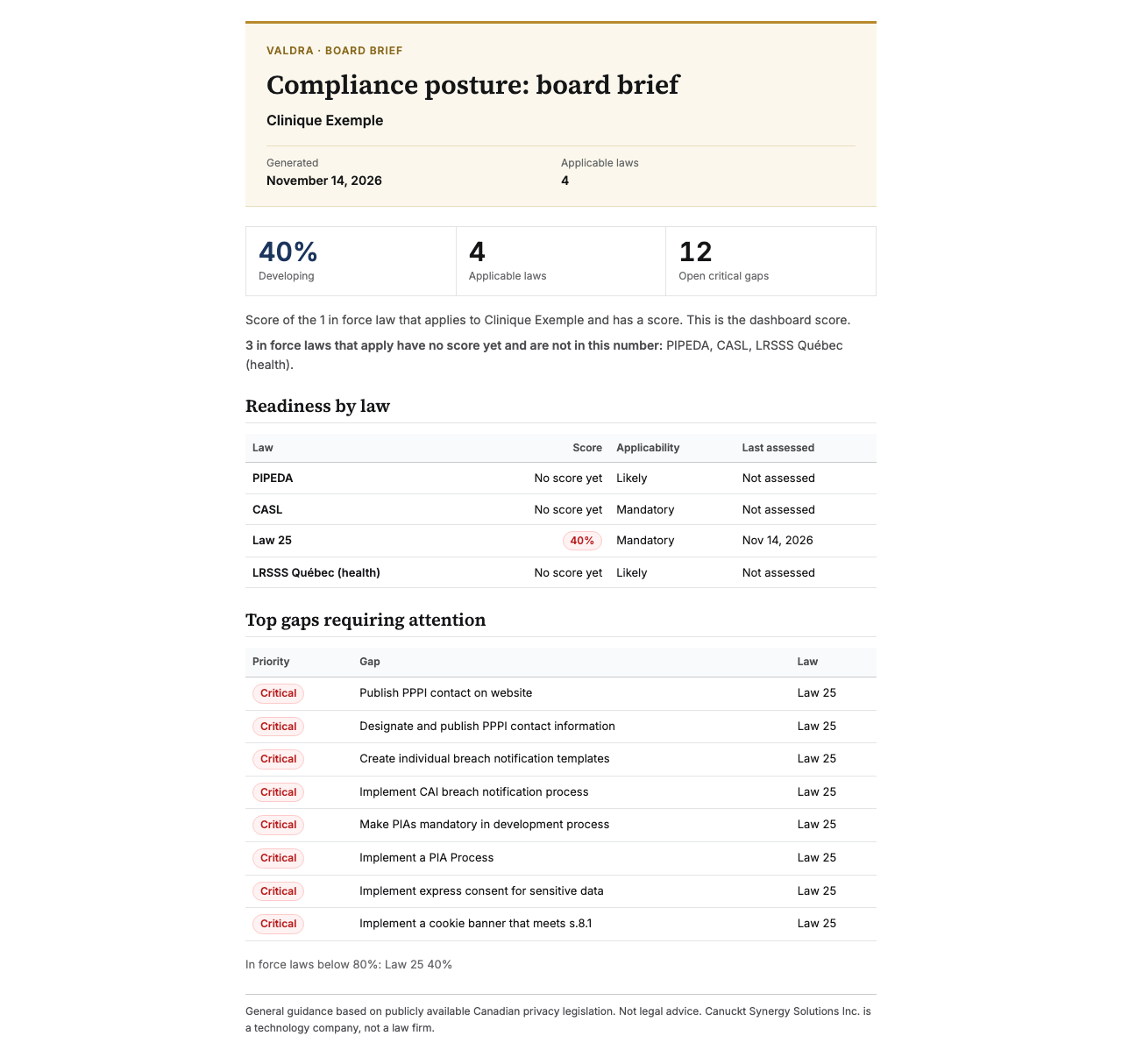
- Board brief: a one page brief for the board, with your score, the laws that apply and the top gaps.
- Compliance officer brief: scores by law, open critical gaps, the history of your assessments and laws not yet in force.
- Score history CSV: each finished assessment with its score, risk level and date, for a spreadsheet.
Click Generate on the one you want.
Save it as a PDF
A brief opens in a new tab, and your browser's print window opens. Choose to save as PDF. You can also press Ctrl + P, or Cmd + P on a Mac. The CSV downloads right away.
Build your own report
On Professional and up, open Report builder under Reports and audits.
Type a Report title. Under Sections, tick what to include, such as Executive summary, Readiness snapshot, Open gaps or Recent breaches.

Click Generate PDF
The PDF downloads in the language you use Valdra in. For a short report for managers, click Board pack instead.
What you will see
The PDF has your organization's name, the date and the sections you picked. Each brief ends with a note that it is general guidance, not legal advice.
Lower on the Reports page you will see Breakdown by applicable law, Score trend and the Completed assessment log. Open an assessment there to see its own report.
Common mistakes and fixes
Generate is greyed out on Score history CSV. You have no finished assessment yet. Run an assessment first.
You see Upgrade to Professional on the Report builder. Your plan does not include it. The three reports on Reports stay available.
You cannot see Generate PDF. Your role is Auditor or Viewer. Ask an Admin to change your role, or to build the report for you.
The board brief lists a law that does not apply to you. The brief lists each law marked Mandatory, Confirmed or Likely. A Likely law stays until you decline it. Decline it in Account, Jurisdictions and laws, then generate the brief again.
Nothing happens when you click Generate. Your browser blocked the new tab. Allow pop ups for Valdra and try again.
If it did not work
Build failed: followed by a reason. The PDF was not made. Check that at least one section is ticked, then click Generate PDF again.